Update: I have since reposted this article with new registry keys that makes configured Adobe updater a lot easer. Check it out at  https://www.grouppolicy.biz/2010/06/updated-how-to-make-adobe-reader-more-secure-using-group-policy/
Recently there have been a number of critical security issues that have been associated with Adobe Reader (see below).
- http://securitygarden.blogspot.com/2010/04/critical-adobe-and-adobe-acrobat-update.html
- http://securitygarden.blogspot.com/2010/01/adobe-readeracrobat-critical-update.html
- http://securitygarden.blogspot.com/2009/10/adobe-reader-and-acrobat-critical.html
- http://securitygarden.blogspot.com/2009/05/critical-update-adobe-reader-and.html
- http://securitygarden.blogspot.com/2009/12/critical-adobe-pdf-vulnerability.html
- http://securitygarden.blogspot.com/2010/01/adobe-readeracrobat-critical-update.html
- http://www.adobe.com/support/security/advisories/apsa09-07.html
To see a complete list of current updates for Adobe Reader (all current versions) on Windows go to http://www.adobe.com/support/downloads/product.jsp?product=10&platform=Windows
This has has left IT administrators with a bit of a nightmare as to how to keep Reader secure as Adobe don’t have the wonderful tools such as Group Policy and Windows Update, WSUS and SCCM to manage their patch rollout deployment.
One thing you might notice about the many of the vulnerabilities in Adobe products is that they are frequently JavaScript issues. Surprisingly the recommend action from Adobe to mitigate this security issues is to simply turn off JavaScript (which is enabled by default) in Adobe Reader. Seeing how rarely the JavaScript option is actually used in Adobe Reader I recommend that you just configure this option to be permanently turned off (see image 1).
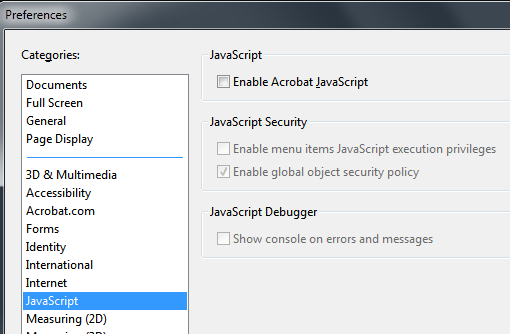
Image 1. Adobe Reader JavaScript option
Disabling JavaScript
Now there is no way to disable the user interface you can disable the user interface using third-party tools (see http://www.policypak.com/support-and-sharing/video-tutorials) to prevent users to re-enabling this option. However some users might need to open PDF’s with JavaScript content so leaving the UI enabled would allow them to re-enable the option when needed. The good thing about configuring this registry key via Group Policy Preferences is that it would automatically turn the option off in the background at the next policy update leaving JavaScript only enabled for a few hours. NICE!
To do disable this option edit a Group Policy Object (GPO) that is targeted to the users accounts. Once you have opened the GPO in the Group Policy Management Editor go to User Configuration > Preferences > Windows Settings > Registry then go to Action > All Tasks > Add and configured a New Registry setting (as per image below).
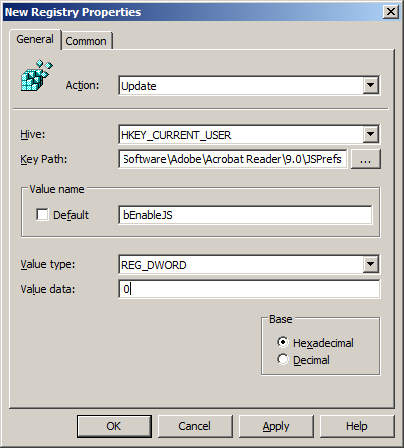
Image 2. Disable JavaScript registry key
The key to update is:
Key: HKCU\Software\Adobe\Acrobat Reader\9.0\JSPrefs
Value: bEnableJS (REG_DWORD)
Data: 0 (zero)
Note: If you don’t want this option to be turned off once a users has re-enabled it then tick the “Apply once and do not reapply†option in the “Common†tab (see image 3) as this will only change this registry key once making it more a default setting rather then an enforced one.
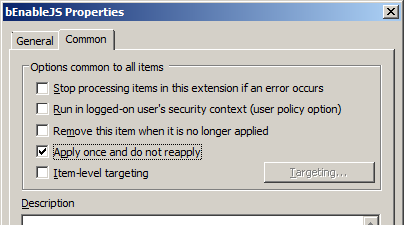
Image 3. Apply one and do not reapply
Configuring Automatic Update for Adobe Reader
Adobe has also added a “Automatically install updates†feature (see image 4) with the release of Adobe Reader 9.2.0. however as of the time of writing this document the new version of Adobe Reader 9.3.0 is out and for some reason it is not automatically updating. So maybe there is a little more work to go here for Adobe.
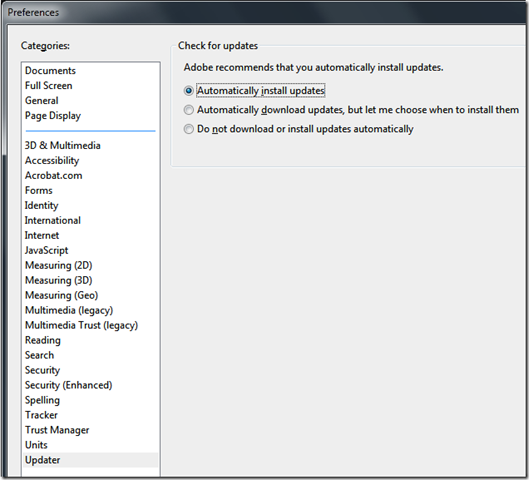
Image 4. Adobe Reader Updater Preferences
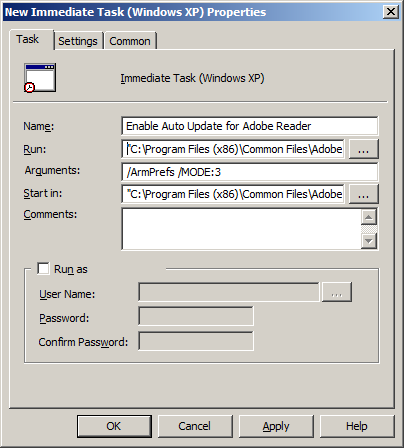
If you do want to experiment with configuring this option via group policy then you need to run the following command on the computer in the context of the system account.
“C:\Program Files\Common Files\Adobe\ARM\1.0\ReaderUpdater.exe†/ArmPrefs /MODE:3
Note: You need to use “Program Files (x86)†if you are running 64bit version of Windows.
You can do this my using the “New Immediate Task†option under Computer Configuration > Preferences > Control Panel Settings > Scheduled Tasks in the Group Policy Management Editor.
Â
So good luck with trying securing Adobe Reader in your organisation as its certainly a front that IT administrator need to focus more upon as McAfee labs have said “Adobe product exploitation will likely surpass that of Microsoft Office applications in 2010.â€.






RT @alanburchill: Blog Post: How to make Adobe Reader more secure using Group Policy http://bit.ly/8eFCE5
Great post Alan! RT @alanburchill: Blog Post: How to make Adobe Reader more secure using Group Policy http://bit.ly/8eFCE5
good find RT @4sysops: How to make Adobe Reader more secure using Group Policy http://is.gd/6b2E6
Group Policy Center » Blog Archive » How to make Adobe Reader more secure using Group Policy http://bit.ly/4oKC3n
RT @alanburchill How to make Adobe Reader more secure using Group Policy http://bit.ly/6ZvaBK
RT @denvercyber: RT @alanburchill How to make Adobe Reader more secure using Group Policy http://bit.ly/6ZvaBK
How to turn off JavaScript in Adobe Reader to make it more secure using Group Policy Preferences (no ADM required) http://bit.ly/8eFCE5
How to make Adobe Reader more secure using Group Policy http://bit.ly/6ZvaBK
RT @grouppolicy_biz: How to make Adobe Reader more secure using Group Policy http://bit.ly/6ZvaBK
How to make Adobe Reader more secure using Group Policy http://bit.ly/6ZvaBK
Adobe Reader is still a security nightmare… see how to make it more secure using Group Policy http://bit.ly/6ZvaBK
Thanks for this, it got me pointed in the right direction.
A couple things to point out: First, you don’t need to run ReaderUpdater.exe to enable automatic updates, you can just change a registry key, as documented here:
http://kb2.adobe.com/cps/837/cpsid_83709/attachments/Acrobat_Reader_Updater.pdf
Create a dword called “iCheck” at HKEY_LOCAL_MACHINE\SOFTWARE\Adobe\Adobe ARM\1.0\ARM and set it to 3 to enable automatic updates.
Second, there are certain instances where Reader will not update automatically, even with this key set. We have found that using Vista with UAC enabled prevents automatic updates, for example. You can find more information here:
http://kb2.adobe.com/cps/838/cpsid_83813.html
Hope this is helpful.
Thanks for the links… i will be sure to update the article…
I have since reposted this article with new registry keys that makes configured Adobe updater a lot easer. Check it out at https://www.grouppolicy.biz/2010/06/updated-how-to-make-adobe-reader-more-secure-using-group-policy/
It is pretty important to secure your Adobe reader with this “Group Policy”. You can avoid hackers, at least most of them and lots more. I’m sure to apply this one too.
Best Practice: How to make Adobe Reader 9 more secure using Group Policy http://t.co/c8ZmcVb