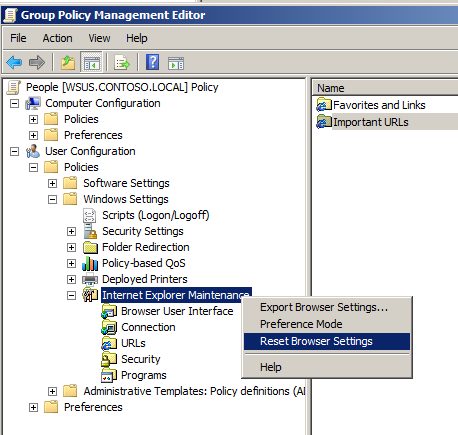
If you have ever configured you Internet Explorer setting via the “Internet Explorer Maintenance†group policy setting you might be wondering however to remove these setting now you found a few easier ways to do the same thing. Well its not all that obvious but if you go to User Configuration > Policies > Windows Settings you can then right click on "Internet Explorer Maintenance" and click "Reset Browser Settings" you are done…






Blog Post: How to remove imported Internet Explorer Group Policy Settings http://bit.ly/dsA5ac
RT @grouppolicy_biz: Blog Post: How to remove imported Internet Explorer Group Policy Settings http://bit.ly/dsA5ac
How to remove imported Internet Explorer Group Policy Settings http://bit.ly/dsA5ac
RT @alanburchill: How to remove imported Internet Explorer Group Policy Settings http://bit.ly/dsA5ac << Not so obvious, but handy 🙂
@Kittenstix @auteched the zone is also set as and Internet Explorer Preferences (OLD)… U might need to do this http://t.co/QSTibCu9
I just tried to add dcserver to group policy management editor, and now having issues trying to get this off the gpme. Any other suggestions would be fantastic!
Awesome! I’ve been searching for this for a long time…
After click Reset Browser Settings, the IEM Extension in the GPO will disappear.
so how to fall back it in again, so IEM Extension will appear
Nice blog! Is your theme custom made or did you download it from somewhere?
A theme like yours with a few simple adjustements would really make my blog stand out.
Please let me know where you got your theme. Thanks a lot
Here is my weblog rburnicedelphine.blog.in..
Hi guys. I have been trying to resolv this too, it is “easier” way. and you don’t have to lower your IE on Win7 to do it:
navigate to \\sysvol\\Policies\\User\ and delete the “microsoft” folder.. it worked for me
@Petr S.
thanks it worked!!!!