This week setting of the week is called “Change Start Menu power button†which allows you to configured the start menu shutdown button in Windows 7 and Windows Server 2008 R2. You can find this setting under User Configurations>Policies>Administrative Templates>StartMenu and Taskbar.
If you have setup your computer to support Hybrid-Sleep then you should consider configuring this option to help ensure that your users select the “sleep†option.
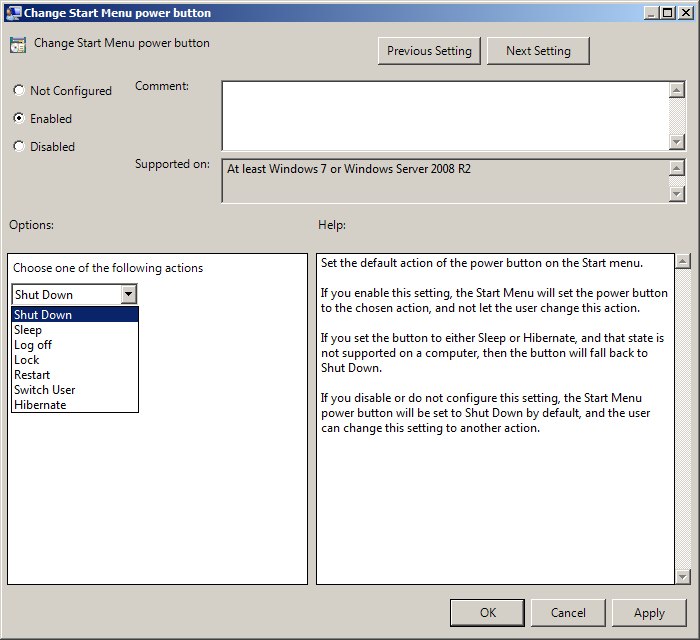
Before
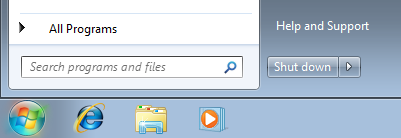
After
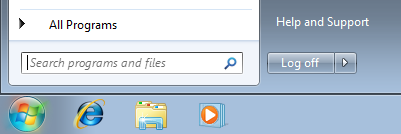
Note: If you select the “Sleep†or “Hibernate†options and the computers does not support that power mode then the option of shutdown will be used instead.






Blog Post: Group Policy Setting of the Week 37 – Change Start Menu power button http://bit.ly/aQO0W5
Blog Post: Group Policy Setting of the Week 37 – Change Start Menu power button http://bit.ly/aQO0W5
It should be pointed out that MS recommends Hybrid Sleep primarily for desktop computers:
“Hybrid sleep is another new power-saving feature designed primarily for desktop computers.”
http://windows.microsoft.com/en-US/windows-vista/Turn-off-a-computer-frequently-asked-questions (under “What is Hybrid Sleep”.
Can you remove the button completely leaving only CTRL – ALT – DELETE to operate these functions?