
Windows Server Update Service (a.k.a. WSUS) is Microsoft free tool they provide for deploying patches and updates. In my experience this tool is pretty much used by every organisation in the world that has more than a hand full of computers. WSUS is also a requirement for the Software Update option in SCCM 2007.
What I hope this post will teach you is how to use Group Policy in your environment to milk the absolute most out of your existing WSUS infrastructure. I am also going to assume that you are familiar with WSUS and already have it deployed in your organisation…
Is WSUS the right tool for your organisation?
Having implement WSUS for an environment of over a combination of 10,000 servers and workstations I can truly say that this tool scales really well. I also believe that even if you have bought and implemented System Center Configuration Manager in your environment then you are probably still better off using WSUS for manage you updates for your Microsoft software. The reason why I still normally recommend that people using WSUS over SCCM is that the product overall is much easier to use and its just human nature for people to want to do the easier tool where possible…
However there are a couple of reason why I think SCCM should still be used over WSUS and they are:
- You require to wake computers using WOL for them to be patched out of hours. (However there is a way to do something similar using Group Policy).
- You want to ensure that computers are only patched during a “Maintenance Window†(however even this can be done using Group Policy) and that these patches do not install if it will take longer than that window.
- The SCCM Software Update supports third party updates when used in conjunction with System Center Updates Publisher 2011. This is very handy if you want to deploy third-party updates from HP, Dell or Adobe (yes! Flash and Reader). But unfortunately even though SCCM SU feature is built on WSUS there is no way to import these third-party updates directly into a standalone WSUS server.
WSUS Tip’s and Tricks
Below are a collecting of configuration recommendations and tips that help you get the most our of your WSUS infrastructure in your environment. These are in no particular order of importance and you might chose to implement only some of these setting depending on your environment.
Terminology: In this post i will use the term “client†many times. When I make this reference note that I am talking about any client of the WSUS Server, which could mean a “client†is either a server or workstation.
WSUS Computer Group Assignment
One of the first things you should do once you have installed WSUS and performed the first sync is enabled the Group Policy computer group assignment. This allows the clients that connect to your WSUS server to be automatically configured in the correct targeting group when they connect to the WSUS server. The target group on the client is controlled using the “Enable client-side target†group policy setting (more on this later).
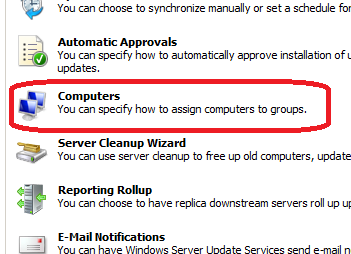
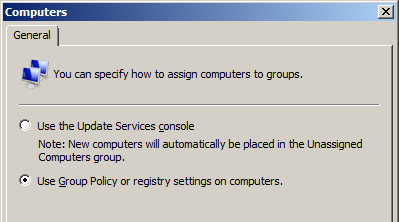
If you don’t enable this option you will quickly find that you need to manually categorise even new computer that reports into the WSUS server. This is fine if you only have few computers but once you star managing many hundreds or thousands of computers this quickly becomes impractical.
DNS Alias for WSUS Server
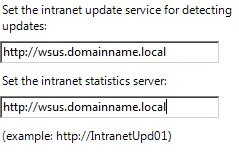
One of the options you can set using Group Policy is called “Specify intranet Microsoft update service location†which allows you to specify the WSUS Server name. Even thought this setting can be controlled via Group Policy and thus can be changed in about 2 hours, I still strongly recommend that you create a DNS Alias. Creating a DNS alias for your WSUS Server will give you another way to easily migrate your clients to a new WSUS server without the need to keep a legacy alias of your old server name after you move to a new WSUS server.
Default Top Level GPO
Another great thing about WSUS is that the Automatic Update agent, which is the software the client uses to connect to the server, is included out of the box in every single copy of Windows Since XP. This means that there is no additional software agents that need to be deployed to the computers to get starting using WSUS. This being the case… You can set a policy at the very top level of your domain using the “Specify intranet Microsoft update service location†setting to configure every computer on your domain to point to the WSUS servers. I find that once an organisation does this they are amazed how this discovers a number of “hiding†computers on their network that have never been patched.
In conjunction with this setting I would also recommend that you set the “Configure Automatic Updates†to option 2 so that by default you are NOT inadvertently pushing out any patches to any computers.
Doing this this is more a discovery process so that you can at least be aware of any un-patched computers on then network that you can then appropriately remediate… An added side benefit doing this is you also get an accurate picture as to home real computer’s are actually on your network.
Hierarchical Naming of Target Groups
Back in the day of WSUS v2 you could allocate computers to target groups however these target groups could not be nested and it meant that every target group had to be unique. Even though WSUS v3 now has the ability to have nested target groups it still has the same restriction that all target groups must be made unique. I suspect that it is due to the ability for a WSUS v3 server to act as a parent to a WSUS v2 server during a migration of WSUS. That being the case, you need to deploy you target group naming strategy in a way to avoid need two target groups with the same name…
Here I will tell you to go visit my Best Practice: Active Directory Structure Guidelines – Part 1 post where I talk about the number of ways you can build your OS structure.
Now we will use the example “Two Level Hybrid (Resource / Location)†(see image below) from the AD Structure Guideline for out WSUS target groups.
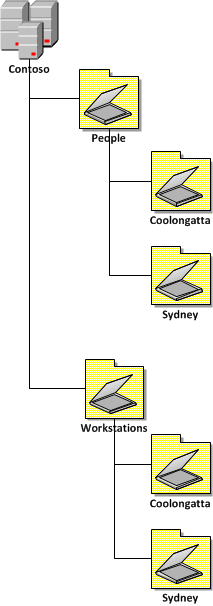
You would use the following Target Group Structure…
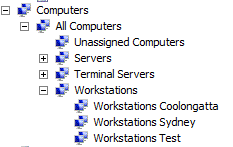
You might also notice in the above image I also have “Terminal Servers†and “Servers†at the top level of the WSUS Structure. Generally I recommend in most environments these are the only top three WSUS groups you will need. I will go into more detail on this further on in the “Top level Patch Approval Groups†section but for now just ignore the server and terminal server target groups…
What you will find is that the OU design of your organisation will largely mirror your OU Structure. You might also notice that the names of the target groups are “Workstations SITENAME†and not just “SITENAMEâ€. The Workstation prefix is required as you might also want to patch Servers in the same site and therefore due to the unique target group requirement you will need to have a “Workstations Sydney†and “Servers Sydney†group.
Now also take a look at the “Keep the GPO’s name consistent with the OU names†section in my Best Practice: Group Policy Design Guidelines – Part 2 post you can see how the WSUS Target Groups are also very consistent (but not the same) as the OU’s that the computer are located. The advantage of doing this is that it makes it a lot easier to determine what OU a computer is a member of just by looking at the target group it has in the WSUS console.
Here you can see an example of how the Group Policy Object would also be applied to support the OU Structure and WSUS Target Group Structure above….
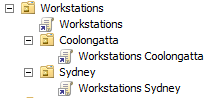
So now if you have actually read my other two AD and GP Best Practices blog posts you might actually be seeing the sheer genius of how these designs are related (Yes I know I am modest). I know that this might not be practically to implement this utopia design for most environments but if you strive to have at least a consistent naming and structure to you organisation I find that it makes finding, troubleshooting and configuring your environment a whole lot easier…
Configure Update Setting and Target Groups Separately
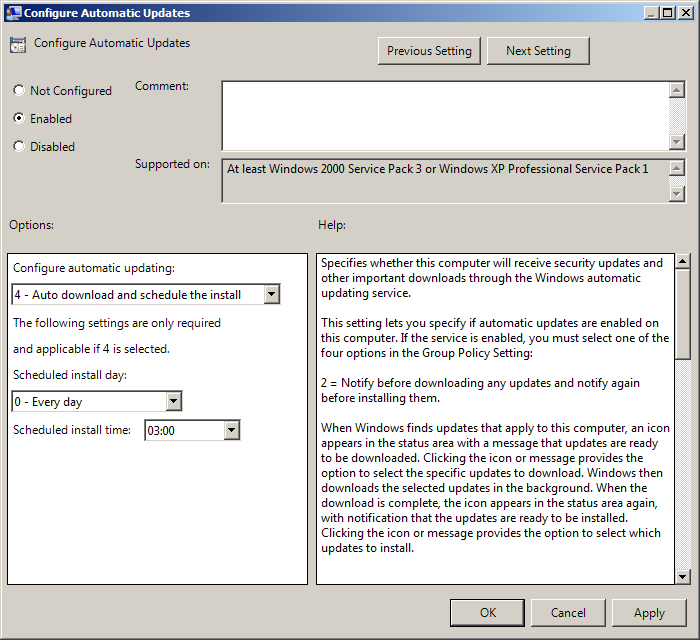
If you have chosen to use a “Resource\Location†OU Structure in your organisation (as seen above) then you should also apply a default “Configure Automatic Updates†on the GPO linked to the Workstations OU. This allows you to apply the default action for patches and if and when they are applied to all workstations consistently from one policy meaning if you ever need to change these setting you only have to do it once.
The other configuration you need to apply is the “Enable client-side targeting†which assigns the WSUS Target Group to your clients. This policy should be applied at in the GPO linked to the lowest level of your OU structure. The example below applies the target group “Workstations Sydney†in the GPO called “Workstations Sydney†(notice the same name) which would be applied on the OU “Workstations\Sydney†(Assuming you are using my genius Group Policy Object naming convention).
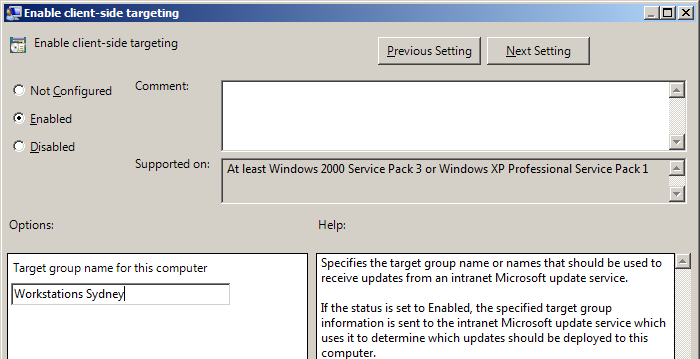
Essentially what this means is that the minimum settings are being applied to all clients by using the sum total of setting applied using multiple GPO’s at different levels.
Just to recap we are applying three essential Group Policy setting at three different levels which get combined together when the policy is applied to the client:
- “Specify intranet Microsoft update service location†is applied at the top level domain so it is configured once for all clients.
- “Configure Automatic Updates†is applied via the relevant GPO that applies to all computer of a particular type. (e.g. “Workstations†GPO allied to all Workstations).
- “Enable client-side targeting†is applied at the lowest level to allow granular reporting of the status of computer groups by Site or Role.
Once you have applied the above three settings to your computers then your clients should have the minimum setting to report into your WSUS server.
Implement a WSUS Update Test Group of Computers
One of the reasons you have a WSUS server hosted internally (besides saving a whole heap of bandwidth) is to allow you to manage the approval of patches to deploy to your computers. The main reason you want to do this is of course it allows you to test these patches to make sure they don’t break anything…
To establish a test group for patches you will need to create a number of security groups. These groups will have the computer accounts in them that you want to use for testing patches. At minimum you probably need to create two security groups, one for workstations and one for servers. However you might find that you need to have to additional groups if you want to have additional independent test groups.
In this example I am establishing a Workstations Test groups using the security group called “WSUS Workstations Testâ€. Note, I have prefixed the group name with WSUS so it is easy to find all the WSUS related security groups in my organisation.
Next you need to create a Group Policy object at the highest level possible that will apply to all your workstations in your organisation. In this example I have linked the policy at the Workstations OU as this will contain all the workstations in my test environment. However if I have workstations under various top level OU’s then you will need to link the policy at the top of the domain.
The next thing to do is to configure the advanced security of the policy to remove “Apply group policy†from Authentications Users and Add the group “WSUS Workstations Test†(see images below). This will make sure that this policy ONLY applied to the workstations that are member of the “WSUS Workstations Test†security group.
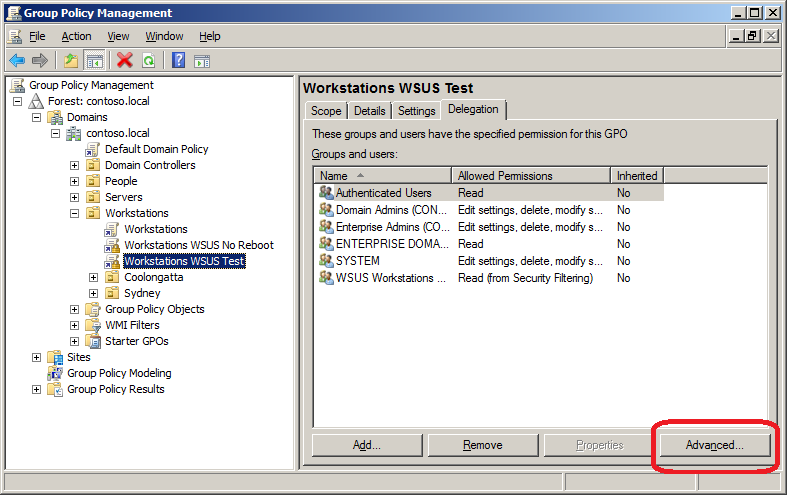
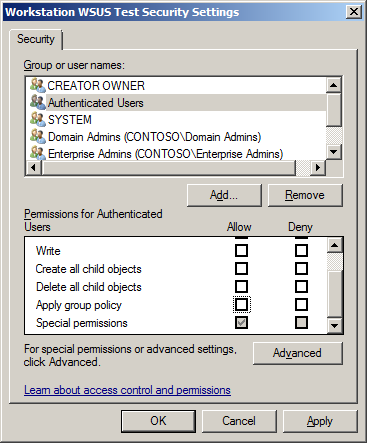
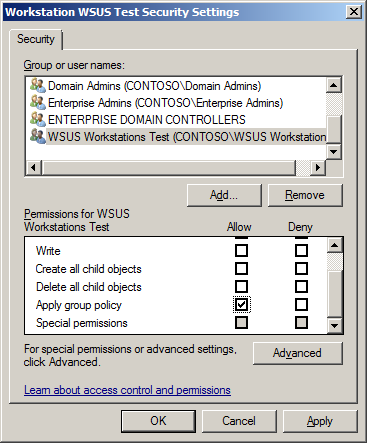
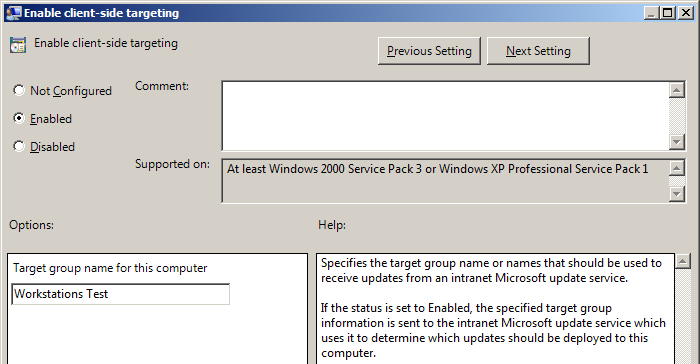
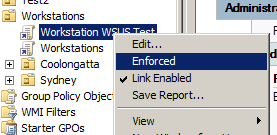
Now you have configured the security delegation you can configure the “Enabled client-side targeting†setting to “Workstations Test†and then enabled the “Enforced†option of the policy (see images below).
Your test policy should now look something like the image below.
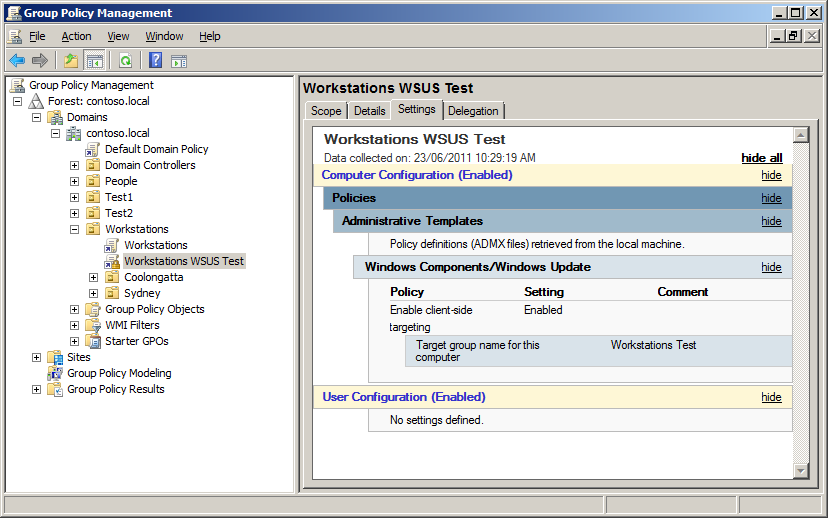
As the GPO is configured with the “Enforced†option it will override any lower level target group configuration. This has the slight disadvantage of not having the granularity of the lower level targeting (e.g. Workstations Sydney) as all the computers in the test group will be targeted using “Workstations Testâ€. But this is normally an acceptable trade-off as these computer are going to be patched at a different schedule anyway…
TIP: Make sure that the computers you have selected to perform patch testing are a good cross section of your environment. You may also want to make sure that the people that use these computers are technically proficient and are likely to report an issues if something goes wrong.
Next you need to make the “Workstations Test†group in WSUS under the “Workstations†Group. The main reason why this is a sub group of the “Workstations†group is that you want to ensure that your test workstations have at least all the same patches approved to them as the other non-test workstations.
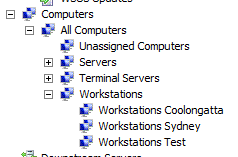
If you then create the “Workstations Test†group at the top level you would need to 1. approve all patches twice to both top level groups and 2. risk approving a patch to the one group and not the other and thus making your test computer not an accurate representation of your non-test computers.
Now that you have selected your test workstation, added them to the test security group and have them in the “Workstations Test†WSUS group you are right to start testing update to this group of computers.
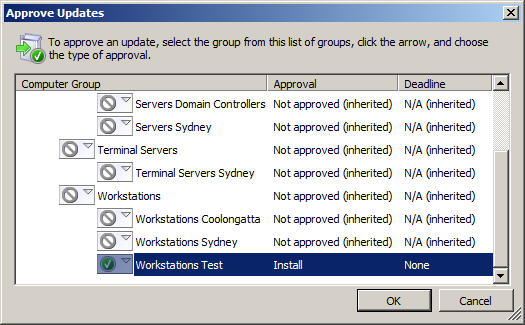
Once you have finished testing of the patch and you are going to approve it for the rest of the computers ensure that you reset the approval for that patch on the “Workstations Test†group by using the “Same as Parent†option.
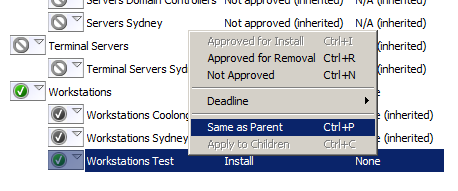
Doing this will ensure that the patch approval to the “Workstation Test†are a complete superset of the patches approved on the “Workstations†WSUS group.
Applying patches to sub roles of computer
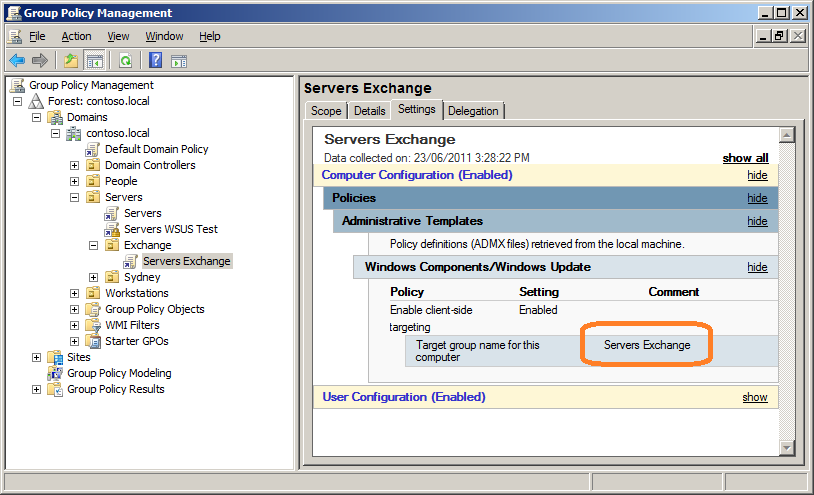
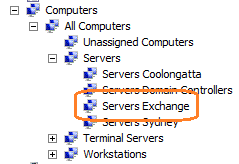
If you have some need to separately approve patches to a group of computers that is not just a workstation, terminal server or server (e.g. Exchange Servers) then simple go through the same process in the about “Implement a WSUS Update Test Group of Computers†section giving it what ever name is appropriate (see images below).
Configure All Workstation to “4 – Auto download and schedule the installâ€
Generally speaking the vast majority of clients for your WSUS server will be workstations and as such you probably DON’T want to manually installed patches on these computers simply because you have much better stuff to do with your time. Therefore in the “Workstations†GPO that I talked about earlier you should configure the “Configure Automatic Updates†option to “4 – Auto download and schedule the install†and the schedule to “0 – Every dayâ€. The affect of this is of course any workstation on you network will have the patches scheduled install within 24 hours of you approve a patch.
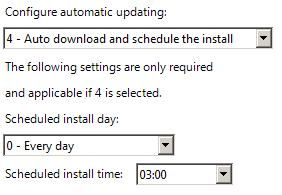
The exact scheduled time is up to you, however the default time of 3:00am has served me well over the years and I have never come across any reason to change this time for the bulk of the workstations being patched. I am not sure of the exact reason why 3am has been selected by Microsoft but I am sure they have there reasons…
Reference TechNet: Best Practices with Windows Server Update Services
one of your main goals is to have any planned downtime occur when there is little chance for lost productivity
Obvious question however is What happens if the computer is off at 3am? Good question… and i will talk about that more later.
How to configured a No-Reboot Policy for Workstations
One of the problems scheduling all your workstations to automatically install patches at 3am is that sometimes computers are deliberately left on overnight to perform some automated task like batch processing. If this applies to you then you need to create a separate GPO that you can apply to the non-reboot workstations. This of course means you have to manually kick off the patch process for these computers but this number should be at least manageable.
This no-reboot Group Policy will be targeted the same way the test group (see above) using a security group to control what computers get this setting. Same as the “Workstation WSUS Test†this policy will have authenticated users removed and only be security filtered using a group called “WSUS Workstations No Rebootâ€. The “Configure Automatic Updates†will then be configured to “3 – Auto download and notify for install†to ensure that the computer will not automatically reboot at 3am.
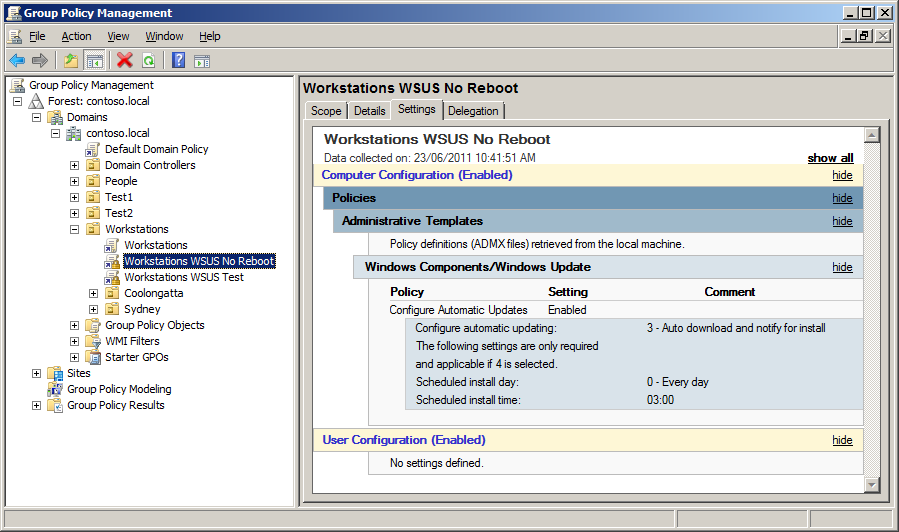
As I mention earlier these computer will not auto reboot however they will download and cache all the patches they require which makes it very easy for any admin to visit the computer and manually install the required updates using “Automatic Updates†in the control panel.
Configure All Servers to “3 – Auto download and notify for installâ€
Reference: TechNet Best Practices with Windows Server Update Services
For maximum control over when your servers are restarted as necessitated by an update installation, set Group Policy to Download the updates automatically and notify when they are ready to be installed, and then create a script that enables to you accept and install the updates and then restart the computer on demand
Unlike your workstations you usually want to carefully plan and schedule the install of patches for servers in your environment. Therefore by default you DON’T want your servers to be automatically installing patches and rebooting at 3am every day. So to ensure that your servers don’t auto install patches configured the “Configure Automatic Updates†setting to the option “3 – Auto download and notify for install†in the global “Servers†GPO you have applied to all your servers (see image below). Doing this will ensure that by default none of your server will automatically install patches and reboot allow the server admins to install the patches at a time of their choosing.
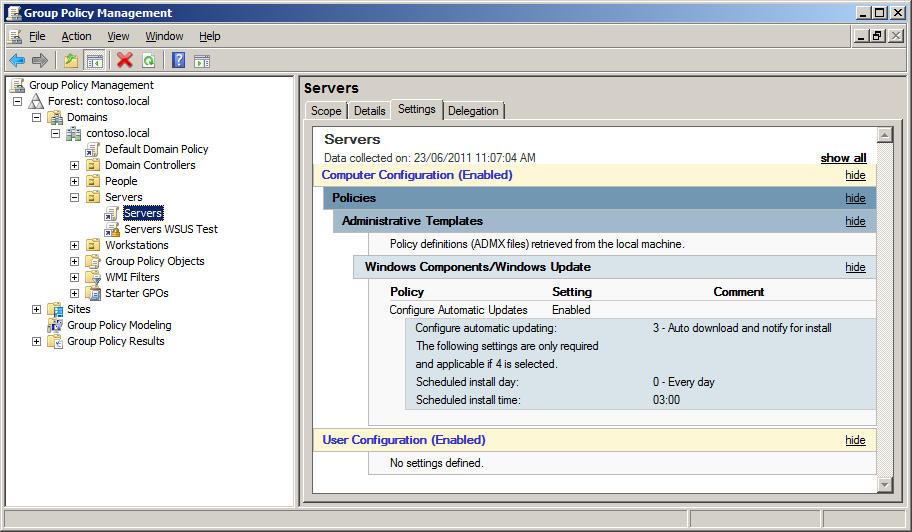
Note: See I also have the “Servers WSUS Test†group created for testing patches to the servers in my environment.
How to automatically patch servers
So you have been patching you servers manually for a while and now you wish there was some way to schedule the patching of them out of hours at a time of your choosing… the good new is that this is possible.
To do this will will stager the patching of these server with Round 1 to Round N computer groups. Servers in the same round will be patches at the same time and therefore will generally not be dependant on other servers in the same round. It would also be wise to never put all your servers in one basket, so don’t schedule a patch and reboot all the servers in the same cluster at the same time (that would be bad). Breaking up the number of server into different rounds also means that if there was an issue with a patch then you will have not applied them to all your servers in your environment.
Before we begin…. A Warning… You may remember that Group Policy refresh can take up to 2 hours approx. this means if you are going to use Group Policy to automatically patch your servers you have a go/no go point some time up to about 3 hours before your plan to reboot. After this point if you decide to abort the scheduled update you might not have enough time to allow for AD propagation and Group Policy refresh for all your servers to stand down from the auto reboot that was scheduled.
The opposite is also true which means if you have not enabled these policies before 3 hours you want them to patch then they might not get scheduled in time…
In the example below the servers will be split into three rounds that will all patch at different times (see table below).
| Round 1 | Round 2 | Round 3 | |
| Time | Friday 10pm | Saturday 12pm (Midday) | Sunday 12pm (Midday) |
| GPO Name | Servers Sydney WSUS Round 1 | Servers Sydney WSUS Round 2 | Servers Sydney WSUS Round 3 |
| Security Group Name | WSUS Servers Sydney Round 1 | WSUS Server Sydney Round 2 | WSUS Servers Sydney Round 3 |
The table above shows that each round will have its own Group Policy Object that will be security filtered using a security groups. They are also scheduled far enough apart that if something goes wrong with one round then you have enough time to un-schedule the next round of patch deployments (see warning above).
The image below is what the GPO’s would look like if the same round in the above table were implemented:
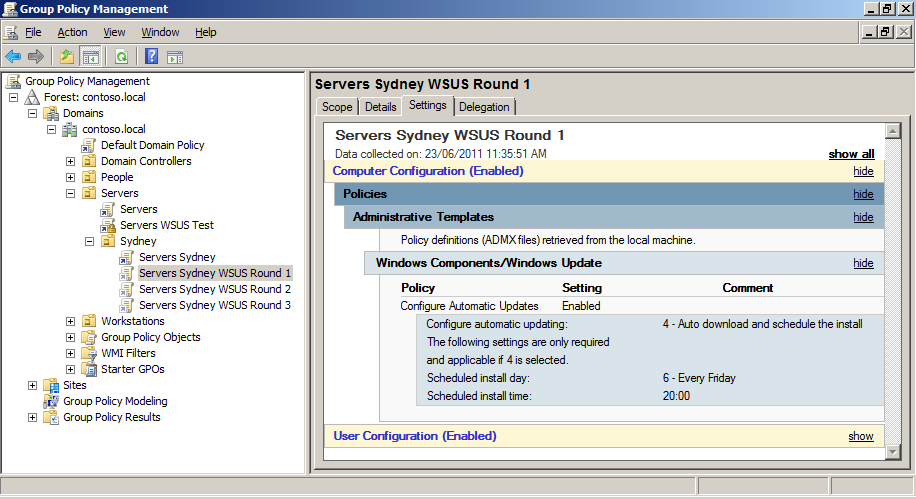
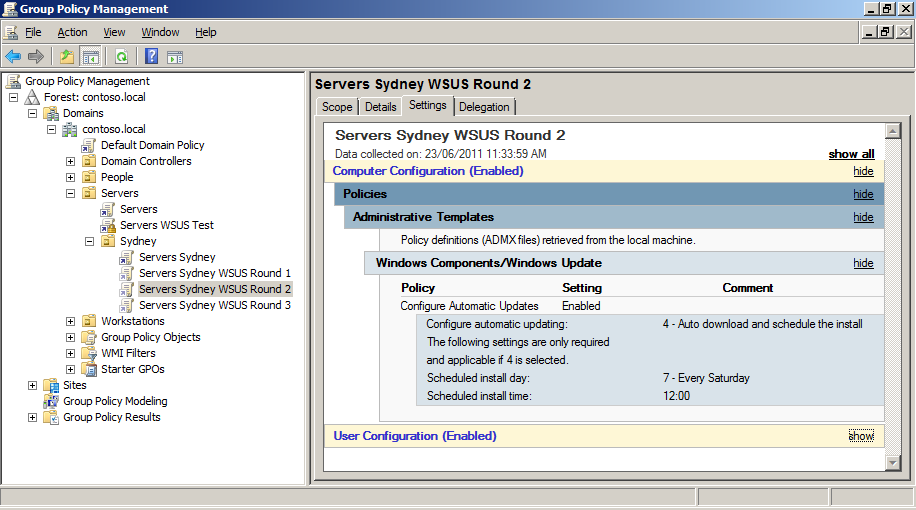
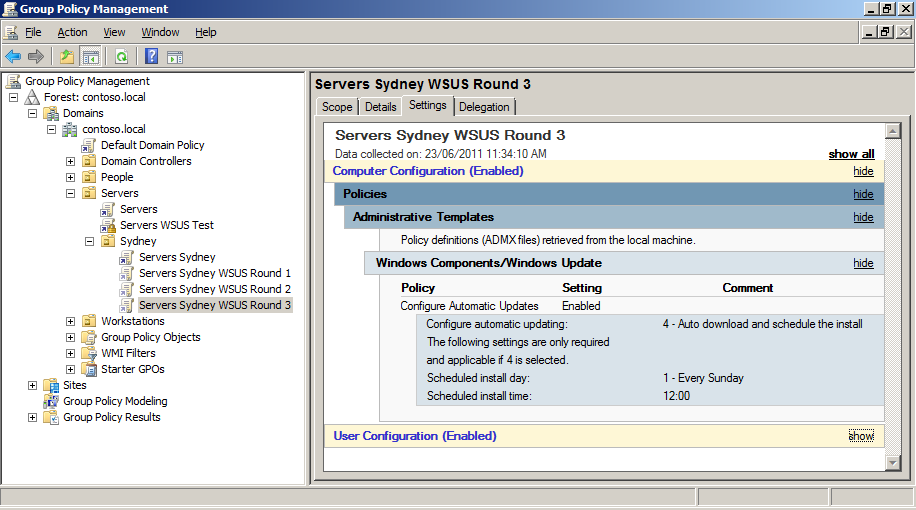
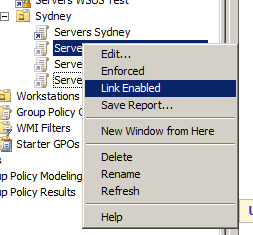
Also note that these GPO’s are normally not “Link Enabled†(see image below). The reason you do this is that you only want to have these policies enabled when you want to schedule the update to your servers (perhaps once a month). Having these policies disabled means that even if you do approve a patch to the server group it still won’t automatically install until you also enable the link on the GPO.
Generally speaking automatic server patch can be scary, however if you know your environment well and you have successfully refined the manual patch process for your servers then stepping it up to automatic deployment. That being said I would still start small with only a few servers and work your way up before you start to push out patches to all your servers and you should always monitor the progress of the reboot of these servers to confirm there was no issues in applying the patches…
Note: If you think that the patch rollout will take multiple reboots note that you will need to manually initiate the second patch update and reboot to install any remaining patches… Generally you should know if this is required after you have deployed you test patches.
Top level Patch Approval Groups
Of course not all your computers in your environment are the same and as such you probably have different patching requirements for your computers based on their role. While you might just take the approach to approve all patches to the built-in “All Computers†group the problem with this is that you might want to spend a differently amount of time testing patches on servers as opposed to workstations.
Therefore I have generally found that all computers fall under 3 main categories, Workstations, Terminal Servers and Servers.
Workstations are the most vulnerable computers in your organisation because of the inbuilt security risk called “usersâ€. Until Microsoft figures outs a way to mitigate this security risk you are just going to have to ensure that as many security holes on the software on the computers as possible (Not to mention apply the recommend security template from Security Compliance Manager). Therefore I recommend that you approve any required update to this group of computers on an aggressive timeline…
Terminal Servers (a.k.a. Citrix Servers… a.k.a. Remote Desktop Servers… a.k.a. what ever other name there is) are kind of strange is that they run the Windows Server OS but they are used by that security vulnerability the “userâ€. Therefore you need to treat the Terminal Servers in your environment very similar to how you patch your other workstations and deploy any detected security updates.
The time you take to approve test patches to your workstations and terminal servers is also is a major difference to your servers as often you need to get these patches out due a zero day vulnerability. In this case I recommend that you have a standing change control approval or understanding that all new patches will be automatically to the test computers as soon as they come in to start the testing process as quickly as possible. This means when you get to the point to make a decision about when you are going to deploy an update you already have a really good idea what impact this is going to make on your environment when you deploy it to the rest of your computers.
Servers obviously are a little different as they don’t have that nasty “user†vulnerability. Therefore you normally can take more time to test the patches to these servers. Having a separate top level WSUS target groups allows you to independently approve any patches that you might want to deploy to your servers.
| Role | Approved Patches |
| Workstations | Workstation OS Patches + Microsoft Office Patches |
| Terminal Servers | Server OS Patches + Microsoft Office Patches |
| Servers | Server OS Patches + Server Patches (e.g. SQL, Exchange) |
Review your “needed†patches
So after read the above section about patch approval groups you might not consider that you have to approve Microsoft Office patches to your servers and vice versa approve Exchange or SQL patches to your workstations… But you would be wrong. The problem is that many times you will find that certain components of products may indeed be installed where you never expected them. A good example is the Exchange Management tools are sometimes installed on Workstations to allow IT Admins manage the exchange server. Another example would be having the a word or excel document viewer installed on a server as it was installed as part of another program installed on the server to view documentation.
Therefore you should regularly review what updates are being detected as needed and plan to also approve these patches during your next patch cycle…
Configuring Background Intelligent Transfer Service for WSUS
Updated for WSUS are pushed out to the clients using the Background Intelligent Transfer Services (a.k.a. BITS). This has a number of bandwidth savings on your network as it server to deliver patches to the clients over even the slowest of network links… But of course some updated (like service packs) can be quite large and therefore you may want to consider configuring the “Set up a work schedule to limit the maximum network bandwidth used for BITS background transfers†setting.
Note: This setting is a configuration per client so if you configure 100 workstations with 1mbit network speed they will try to all download at 1mbit at the same time.
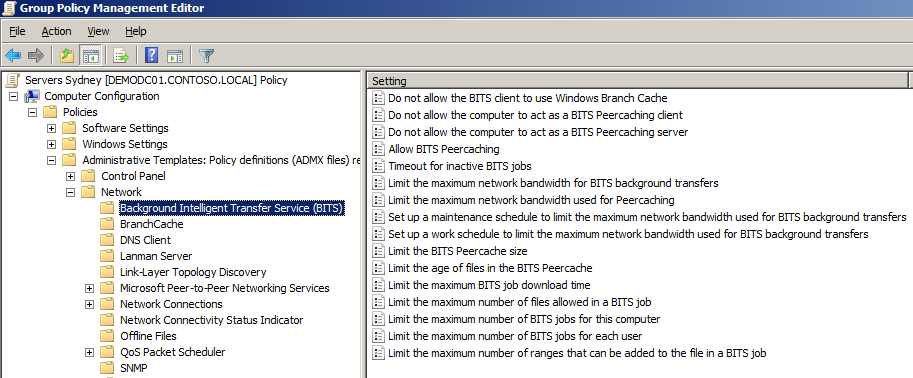
Another really great feature to enable if you are running Windows Vista or 7 is “Allow BITS Peercachingâ€. This allows the clients on the same network segment to share the parts of files they have already downloaded locally with other peers. This effectively means you only need to transfer the file once to a site but have it used many time thus saving a whole heap of WAN bandwidth.
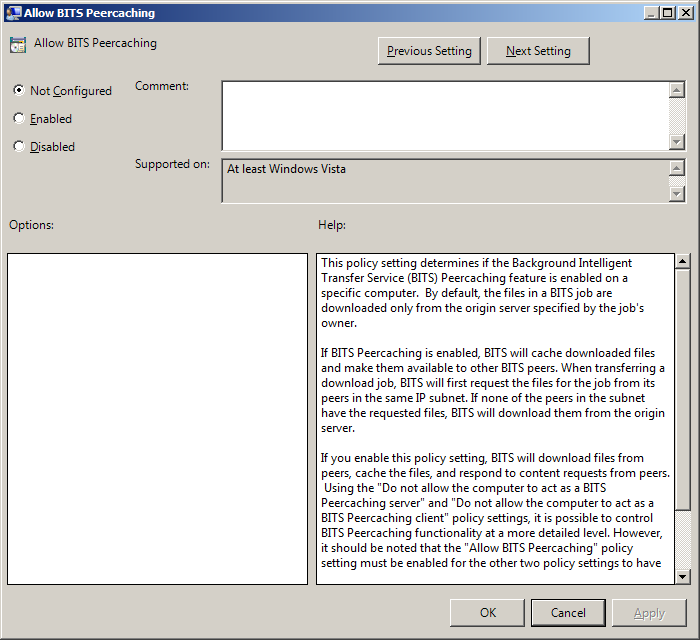
Use WSUS for your DMZ Servers
One of the interesting things about WSUS is that it requires no authentication for the client. Therefore pretty much any server domain or non-domain joined can successfully register it self against any WSUS server. One advantage of this method of allowing any client to connect is that clients in a DMZ can be configured to report into a DMZ server that is hosted on the internal network. To enable this to happen however you do a few things:
- You need to allow TCP Port 80 (or 443) from your clients in the DMZ to your WSUS Server.
- As the clients in your DMZ are probably not domain joined you will need to manually apply the registry keys to configured the automatic update service. To make this an easy process just export all the registry keys from “HKLM\Software\Policies\Microsoft\Windows\CurrentVersion\WindowsUpdate†(Yes I know this is not strictly a Group Policy) of a domain configured client with the settings you want to use. This way you can just apply this registry file to the computer you want to configure in the DMZ.
TIP: Change “HKLM\Software\Policies\Microsoft\Windows\CurrentVersion\WindowsUpdate\TargetGroup†value in the registry key to “Servers DMZâ€
- Update the HOST’s file of the DMZ server so that the name of the WSUS server (e.g. “wsus.domainname.local†will resolve to the correct IP address. This assumes you cannot resolve internal host names from the DMZ.
- Optional: As an added level of protection, you can use HTTPS encryption of all traffic to the WSUS server. If you do opt to do this you will need to allow port 443 open on the firewall and you will need to install the root certificate for you internal certificate server on your DMZ host. Also see http://technet.microsoft.com/en-us/library/cc708550(WS.10).aspx for instructions installing HTTPS on your WSUS Server.
Other WSUS Group Policy settings
Below is a collection of random other Group Policy Setting you should consider in your environment:
Enabling Windows Update Power Management to automatically wake up the system to install scheduled update – This setting only applied to Windows Vista or above and I can’t say I have ever had any experience with implementing this setting. However if it work as advertised then this will go a long way to ensure that computers that are patched even when turned off, largely negating the need to send a Wake On LAN to patch clients afterhours.
Automatic Updates detection frequency – In this Tech Net Article Best Practices with Windows Server Update Services they say….
“if you are aware of and want to protect computers against immediate security threats, you might want to set up more a more frequent schedule for computers to contact the WSUS server, download, and install updates. “
It might tempt you to change the this setting to 1 hour. You will quickly find out that this may have the affect of bring the WSUS server to a grinding halt, as you would be loading the server with 22 time more the number of request. If 10,000 clients report into the server every 22 hours and you set this policy to 1 hour that will increasing the load to be equivalent of 220,000 clients. SO… DONT change this setting unless you do have a case to change. But if you do make this update happen faster ensure you only apply it to a select number of clients.
Allow Automatic Updates immediate installation – What you might not realise is that some patches that are released from Microsoft do not require the computer to be rebooted. Typically Microsoft Office patches fall under this category. Therefore the Automatic Update agent has the option to install these non-reboot patches straight away without interrupting the user if they are not actually using the relevant program at the time. Obviously this speeds up greatly the deployment of these non-reboot patches and it also means that you will have fewer patches to install on reboot and thus make the whole patch process go all the more quicker…
No auto-restart for scheduled Automatic Updates installations – Loss of productivity is a bad thing, and while enabling this may lengthen the time it take for a patch to be deployed it is most often preferable to just let the install of the patch being delayed then to reboot the computer with the user logged in resulting it lost work.
Be carful of Time Zones
A word of warning… Time in the “Configure Automatic Updates†setting applies the reboot sechduled to the client based on the time and time zone of the client. Therefore if you apply a 3am reboot to all your clients in the world it will take 24 hours before all the clients have installed the update.
HOWEVER!!!!!
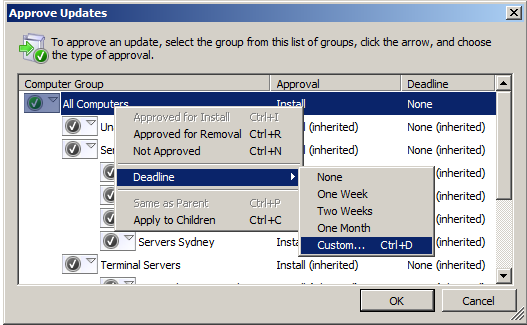
If you approve a patch with a deadline from the WSUS console (see image below)… BE WARNED!!! This will reboot the clients at the time relevant to the WSUS Server. This means it would reboot every computer in the world at exactly the same time at 3am local time to the server… Clearly this could be bad as someone on the other side of the world could be force rebooted in the middle of the day.
Domain Controllers
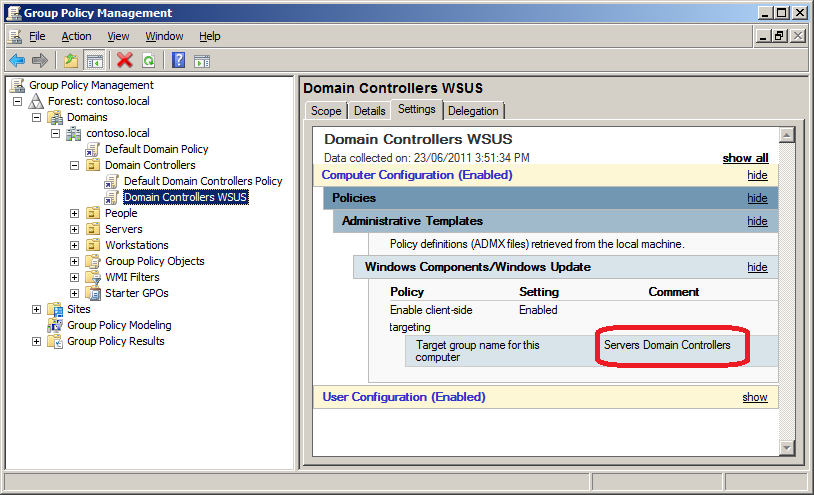
Finally Domain Controllers are somewhat different as they are of course located in their own special “Domain Controllers†OU. But, if you have configured a Default Domain WSUS setting at the top level of the domain (see “Default Top Level GPO†section at the beginning of this document) then the Domain Controllers will already be reporting into WSUS server as an “Unassigned Computersâ€. The only other GPO setting you might want to apply to the domain controllers is the “Enable client-side targeting†setting configured to a value such as “Servers Domain Controllersâ€.
TIP: I would recommend that you create a separate GPO as i normally don’t like to modify the “Default†group Policy Objects.
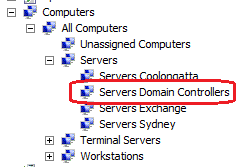
If you do decide to do this don’t forget to also create a WSUS target group called “Servers Domain Controllers†under “Servers†in your WSUS Target Group Hierarchy.
Summary
In summary the process of using Group Policy to support your WSUS patching infrastructure can be quite powerful and save you a lot of time… However always make sure that you proceed incrementally as you implement changes making sure you understand how each change works before moving on…
I also hope that you can see that when you use Group Policy + WSUS are used together it can be a VERY powerful patching infrastructure…






Blog Post: Best Practice: Group Policy for WSUS http://bit.ly/lpmtWq
Best Practice: Group Policy for WSUS http://j.mp/ll3gJ7 < must read
Blog Post: Best Practice: Group Policy for WSUS http://bit.ly/lpmtWq
Best Practice: Group Policy for WSUS http://goo.gl/XOTtv
Blog Post: Best Practice: Group Policy for WSUS http://bit.ly/lpmtWq
Best Practice: Group Policy for WSUS – http://bit.ly/jXkSNb
Muito bom! #WSUS RT @ecmansur: Best Practice: Group Policy for WSUS http://goo.gl/XOTtv
Best Practice: Group Policy for WSUS http://goo.gl/XOTtv
Hello and thanks for this article, which shows WSUS configuration within a large IT environment.
I do have a question about client-side targeting. I had to disable them because they werent working and preventing computers from being detected and patched. Are they really useful in small environments ?
Cheers,
Best Practice: Group Policy for WSUS http://t.co/hiG48He via @alanburchill
Best Practice: Group Policy for WSUS http://tinyurl.com/3vylfyh
great article, thanks alot
Best Practice: Group Policy for WSUS http://t.co/9ZAUIW2s via @alanburchill
Hi,
I don’t seem to be having any luck scheduling my updates to a group on computers. I have created a global security group (WSUS-WED-5AM) containing the target computers and added that to the GPO with the settings to apply (e.g Sunday at 5AM)
I’m able to apply the global WSUS settings as you recommended which I see getting applied when I do a gpresult /r on the servers I see it as an applied Computer Policy. The only way I seem to be able to get the scheduled GPO to apply is to remove the Computer group (WSUS-WED-5AM) from the security filtering and adding back in Authenticated users. Of course doing this negates the effect of being able to target a set group of computers. This GPO has been set on the OU containing the target servers.
It doesn’t matter which OU the WSUS-WED-5AM group resides in does it!?
Thanks
David
No that should not matter… Run a GPRESULT /R report on the computer to see when updates should be applied… Of course the computer will need to have some updated pending for them to install…
It’s definitely something to do with the way the group is configured because if I put the computer account directly in the scope it picks up the settings and the GPO is applied. I even tried making a Domain Local group and adding that to the scope with the computer account in it but still the GPO is filtered out; Filtering: Denied (Security)
I’ve even tried nesting a Global Group inside the Domain Local group but the same result is achieved. Very frustrating.
I’ve read through the Microsoft doco and I’m pretty sure I’ve got everything in place for it to work http://technet.microsoft.com/en-us/library/cc781988%28WS.10%29.aspx
Can i just confirm that the computer account is in an OU that has the GPO (with security filtering) linked…?
Yes it is.
Doh, think it has to be a Universal computer group!
@mikezx6 check out the article writen by GP MVP @alanburchill at http://t.co/AaPLbfZk
Excellent article. Exactly what I was needing. Thank you.
Problem I ran into with the automatic server patching:
As the general wsus policy is enforced in the parent OU the child OU will never take the settings of the gpo concerning automatic reboots at least that is what the modelling wizard tells me. So is there a workaround for this?
never mind, I found it. Link it to the same container as the original WSUS policy, enforce it as well and then change the link order so it has precedence. Thanks for the attention though.
So subgroups in WSUS just use the subgroup name and not in Group\Subgroup format with client side targeting: http://t.co/yvkJ5OzR
Hi, With WinXP clients I am able to approve updates in WSUS 3.2, with deadlines. Users are notified of downloaded updates (yellow shield icon) and have a window of opportunity to do the installs at a time convenient to them. If they put it off, the deadline eventually arrives and the updates are forcibly installed. This is with the “3 Auto download and notify for install” setting in group policy.
With Win7 clients I have set up exactly the same group policy settings but it appears the client behaviour is now different. If a deadline is imposed at the WSUS approval stage there are no notifications on the client or a tray icon to initiate installs. Users simply have the updates forcibly installed at the deadline time with no opportunity to do them themselves beforehand.
Is this how it is now or is there a way to replicate the WinXP behaviour? Thanks.
Update: Notifications do appear for Win7 clients, with a little *ahem* patience.
However, with the “Remove links and access to Windows Update” setting also turned on in group policy, users don’t have an option to install the updates. They have to wait for the deadline. If the above setting is turned off, users get the option to install the updates that have downloaded from the WSUS server. The trouble is they also get the option to go to the Windows Update site and pull down updates you may not want them to have.
I’d like them to be notified of internal WSUS updates, be able to install them at leisure up to a deadline, but not be able to access the Windows Update site directly.
Best Practice: Group Policy for WSUS http://t.co/SziFwFNw via @alanburchill
Hi Nebby, there is a real easy and simple workaround where you could hardcode of WSUS into the servers/workstation registry. Those servers/workstations will report back to your WSUS automatically.
I do agree with all of the concepts you have introduced on your post.
They’re really convincing and will certainly
work. Nonetheless, the posts are very brief for novices.
May just you please prolong them a bit from subsequent time?
Thank you for the post.
I think the admin of this site is actually working hard in support of his web site,
because here every data is quality based data.
I’m really enjoying the design and layout of your blog.
It’s a very easy on the eyes which makes it much more enjoyable for me to come here and visit more often. Did you hire out a developer to create your theme?
Great work!
Can I simply just say what a relief to find a person that actually knows
what they are talking about over the internet. You actually understand how to bring an issue to light
and make it important. More people really need to look at this and understand this side of the story.
It’s surprising you are not more popular since you most certainly possess the gift.
Awesome blog! Is your theme custom made or did you download
it from somewhere? A design like yours with a few simple adjustements would really make my blog
stand out. Please let me know where you got your theme.
Thank you
I am not able to approve wsus updates from downstream server. approve option is disabled. updates are successfully downloaded from upstream server and available on downstream server but unable to approve.
Can someone please help me on this?
Thanks in advance
Chandra, approvals are made on the Upstream server, downstream is more of a Read Only WSUS server and a gateway for remote servers and computers to get updates/configurations from.
Hi,
cool blog, and great Work, thanks! How i can manage update installation after an reboot of the server systems?
Install Updates on scheduled Taks (gpo) –> then reboot the system automatically (if updates need an reboot)–> after reboot (no login into system) install the remaining updates –> then (if necessary) reboot again. We wanna ensure that all updates in our patch process are installed in the planned maintenance window.
We want a complete automatic installation process of updates (only gpo and wsus) for our server systems (2012R2 and 2008R2)
How can i manage this? Is this possible only with gpo?
Hi,
Recently we ran into a problem where the production servers got rebooted automatically due to patch installation. The only source for patch is the WSUS server. Before the day of reboot, we actually changed the computers option to “use update services console ” in WSUS console to manually group some of the servers into a separate group. Could this option change is reason for reboot? Can someone help in understanding these options.
Wow, nice article!
Very nice article! Really enjoy your site.
I would add the following :
1- Add the port to “Specify intranet Microsoft update service location†with version WSUS 6.3 (2012R2) with http://wsus.domainname.local:8530 because you gonna run into 404 error on the WindowsUpdate.log
2- When i use the “WSUS Workstation test” Global group on security filtering (and add my machine into it), I got a Denied GPO (Access Denied (Security Filtering), but it’s working fine when i put directly the machine account on security Filtering… I’m not sure how to address this to Microsoft, but it’s a bug. I’ve try to recreate the group as Local and Universal without success.
Don’t stop being amazing!
Very nice article on setting up an environment with WSUS, this only appears to work when using the security groups which not even Technet knew to include in their KB.