In case you had not already heard Microsoft have had to release an update for all European users to prompt display a ballot screen about what version of browser they want to use (see below). This is one of the actions Microsoft had to do to comply with the EU anti-trust case.
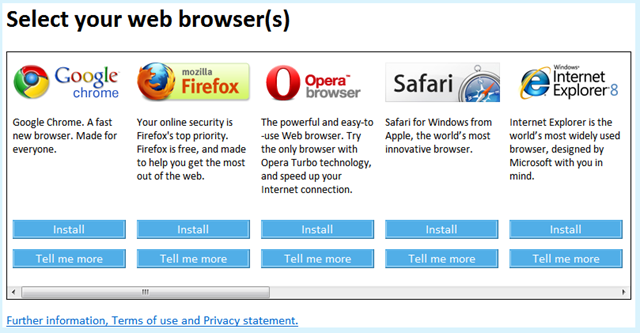
Microsoft have released article KB2019411 explaining how IT administrators can disable a Browser Choice screen for their users using a simple registry key.
Key: HKLM\Software\BrowserChoiceÂ
Value: Enable
Data: 1 (REG_DWORD) = Enabled
Data: 0 = Disabled
Now of course you can deploy registry key using Group Policy Preferences which will make it much easier for IT administrators disable this screen.
Step 1. Edit a Group Policy Object that is applied to all the workstation you want this Browser Ballot disabled.
Step 2. Navigate to Computer Configuration > Preferences > Windows Settings > Registry and create a “New Registry Itemâ€
Step 3. Type “Software\BrowserChoice†in the Key Path then type “Enable†in the Value name, then select REG_DWORD as the value type “0†in the value data and then click “OKâ€.
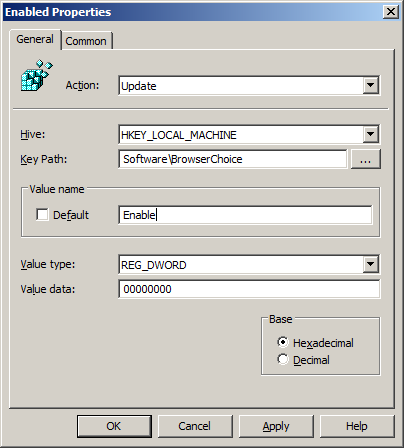
If all that is to much hassle to do all that below is a link to the Group Policy Preference XML file you can just copy into the policy.
Links:
- More information on the Brower Choice http://support.microsoft.com/kb/976002
- More information on the Disable registry key http://support.microsoft.com/kb/2019411
- Also check out Aaron Parkers blog here for more information http://blog.stealthpuppy.com/windows/disable-the-browser-choice-screen






Blog Post: How to use Group Policy to disable the EU Browser Choice http://bit.ly/a2FS3d
How to use Group Policy to disable the EU Browser Choice http://bit.ly/baRenY
RT @alanburchill: How to use Group Policy to disable the EU Browser Choice http://bit.ly/baRenY
RT @grouppolicy_biz: Blog Post: How to use Group Policy to disable the EU Browser Choice http://bit.ly/a2FS3d
How to use Group Policy to disable the EU Browser Choice http://bit.ly/a2FS3d
According to the Microsoft KB-article the Value name is “Enable” not “Enabled”.
Thanks for the pick up. I have now fixed the article.
Thanks for the pick up… I have now fixed
I just noticed something, apparently this key varies from computer to computer when its disabled. Looks like some built-in security. But I tried to deploy with Group Policy but windows keept going back to default mode. And I noticed the registry value was different from computer to computer.
Hmm… thats interesting becuase according to http://support.microsoft.com/kb/2019411 its a static value… what variance are you seeing?
Hi sorry about this, the comment was supposed to be on the post for about removing the “Set backup” notification in Windows post 🙂
Ok. I thought the same so I checked this setting on two seperate computers and it was the same value…
Hi Alan,
I have a question about your post.
You write
“Step 2. Navigate to Computer Configuration > Preferences > Windows Settings > Registry and create a “New Registry Item”
Well, I create a new GPO and I edit it.
I read Computer Configuration but then I can choose Software Settings, Windows Settings an Administrative Templates, not “Preferences”.
Am I making an error?
Thanks for you answer.
Giuseppe
Sounds like you are using a older version of Group Policy Management Console that does not have the “Preferences” options. Are you editing the policy on Vista or above…
Hi Alan,
I’m using a Windows Server 2k3 and I thought to set in my server this GPO….it is possible?
No. You have to be using Windows Vista/2008 or greated to manage group policy preferences… however you can download the client side extntions for 2003/XP to enable the setting for that environment…. Its just they need to be managed from a Vista/2008 or greated environment.
Hi Alan,
thank you for you answer.
Then, if I’ve understood, I can do it by a GPO on my server Win2k3 with the client side extentions, is it right?
Could you say to me where I can download the client side extentions for 2003/XP?
Thank you very much.
This link is a page i maintain for all the relevant Group Policy files…
https://www.grouppolicy.biz/files/
This link explains how to instal the Group Policy Management Console…
https://www.grouppolicy.biz/2010/03/how-to-download-and-install-the-group-policy-management-console-gpmc/
And this is a good set of links to pages to read for more information about Group Policy Preferences…
https://www.grouppolicy.biz/2010/03/what-are-group-policy-preferences/
In summary you need to install the Client Side Extentions on XP/2003/Vista… and you need to install the Group Policy Management Console at least ONCE some where on your domain on a Vista/2008 or greater computer to manage the policy…. (NO SCHEMEA OR DOMAIN FUNCTIONAL LEVEL UPGRADE REQUIRED)….
Hope it helps..
Very well Alan!
Now I’m opening kinks and I read its.
Thank you very much and I greet you from Italy
Ops…I’ve made an error….I’ve written kinks but it was links…sorry.