 If you saw my tweet or Darren Mar-Elia blog post you may be glad to know that the legacy Internet Explorer Maintenance section of group policy has now been removed in Windows 8. Unfortunately this means that you can now longer natively configured the IE Site to Zone mapping using native group policy setting without still allowing the user to customise the URL list. So below I will show you how you can still use Group Policy to configure the IE Zone via group policy while still allowing the user the ability to add additional sites.
Put simply we are going to setup the IE Zone registry keys manually using Group Policy Preferences…
However it’s a little complicated as the URL that is in the Site to Zone mapping is actually stored as the name of the key. Finally the protocol is the registry value with a number that assigns it to the corresponding zone. In the example we use we will first look at the currently site that the users has setup in the trusted site list (www.bing.com). As you can see below the zone is store at HKCU\Software\Microsoft\Windows\CurrentVersion\Internet Settings\ZoneMap\Domains then the domain is stored as a key “Bing.com” then “www”. Within the “www” key the protocol (http and/or https) is the value name with the value representing what zone it should be a member.
Note: We are just using bing.com as an example as you would never add at search engine as a trusted site.
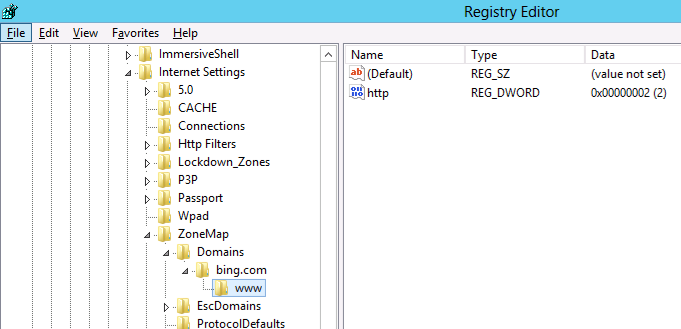
Now we will add the additional site www.google.com.au also to the trusted sites list using group policy.
Step 1. Edit a Group Policy that is targeted to the users that you want the IE Zones applied.
Step 2. Create a new Group Policy Preferences Registry Extension then select the “HKEY_CURRENT_USERS” Hive and then type “Software\Microsoft\Windows\CurrentVersion\Internet Settings\ZoneMap\Domains\google.com.au\www” in the Key path. Then enter the Value name of “HTTP” and selected the Value Type as “REG_DWORD” and set the value data as “00000002”.
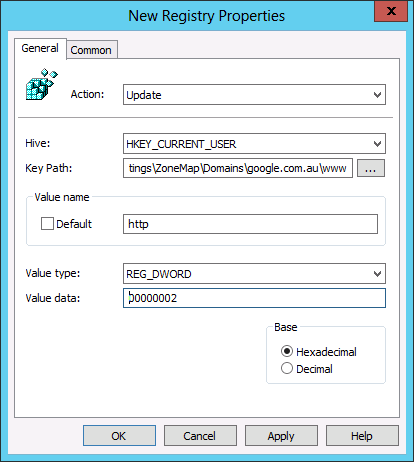
And you’re Done…
TIP: For your reference the values and their corresponding Zones are listed below in the table.
| Value | Zone Name |
| 00000000 | My Computer |
| 00000001 | Local Intranet |
| 00000002 | Trusted Site |
| 00000003 | Internet |
| 00000004 | Restricted |
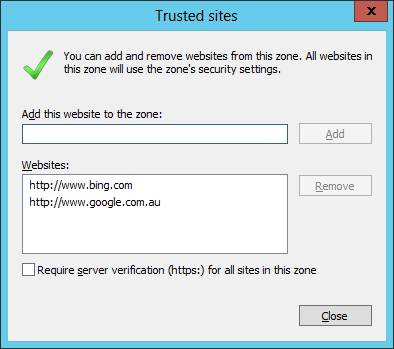
As you can see below the IE zone will push out to your users and it will be added to the trusted zone list, while still allowing them to add and remove other zones from the list.
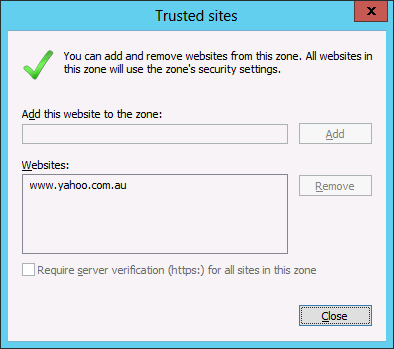
TIP: As always the native group policy settings will take precedence over Group Policy Preferences therefore if you have the “Site to Zone Assignment List” setting configured as well this will override (not merge) the above settings (See image below).






Group Policy Central http://t.co/Y2cVZ0TP
Hi Alan,
Where on earth did you find this little gem?
Eric 😀
Yes!
I worked this one out on my own a few years back, Should have written a blog / guide back then! I’d be a millionnaire!!
But still – this is a great way to allow the users to add their own trusts, of on site to fix a broken site without returning to GPO Editor just for a single user!
Nice one.
I wasn’t able to get this to work. I tried it on both User and Computer settings. There was no sub folder under ‘hotmail.com’. The domain I’m trying to remove.
I’m unable to get this to work. Even the group policy results test shows it is successful, but it never shows up in the IE Internet settings. I’ve added a REG entry to also “uncheck” the require https: and that doesn’t show up either. I’ve test on both WinXP with IE8 and Win7 with IE9. Same results. I’ve looked at the registry and see nothing added. Plus, there are no errors in the event log.
Strange behavior.
I just troubleshooted with the same problem that it was not working with no error message to troubleshoot anywhere.
SOLUTION: I fired up regedit and navigated to “HKEY_CURRENT_USER\Software\Microsoft\Windows\CurrentVersion\Internet Settings\ZoneMap\” There I saw the site I wanted to add as a sub-key to “ZoneMap” and not as a subkey to “Domains” as it is supposed to be. The “Domains” subkey was empty. I deleted the site from “ZoneMap” and then did a gpupdate. When I then refreshed regedit the site was created no the correct location and everything was working. 🙂
Thanks for the info, but this isn’t my experience at all.
I’ve checked the registry for this same error and see nothing. I’ve even searched the entire registry for the domain name, and it finds nothing…
I’ve got a computer policy that is applied to the OU where the computer lives. All items in the policy are updating successfully, except for the registry entries. I’ve run the group policy results and see no errors. I’ve even created the policy by using the registry wizard and importing the items from my local registry. When I check the local registry on my test machines, I see nothing change. If I add the entries via IE, then they show up in the correct places. I’m stumped why this isn’t working…
Tough one. I often had typos in the GP preferences mess things up for me in the past, also the correct amount of \ signs in the key path is important. Personally I have never used it in computer policy, but I’ve always used user policy, perhaps that is worth a try? Also I always use “Replace” and not “update” in the GP Preference.
What do you mean by, “the correct amount of signs in the key path”? What is a sign?
I had the same thought about user policy yesterday and tried that as well. No luck. I haven’t tried the “Replace” option. I’ll test that next.
A bit clumsy explained, sorry about that. But I meant where you put the (slash) \ in the path. “Software\Microsoft\Windows\CurrentVersion\Internet Settings\ZoneMap\Domains\*.contoso.com” is the correct path, but if you write “\Software\Microsoft\Windows\CurrentVersion\Internet Settings\ZoneMap\Domains\*.contoso.com” or “Software\Microsoft\Windows\CurrentVersion\Internet Settings\ZoneMap\Domains\*.contoso.com\” then it will fail.
Not sure why but I can’t make this work at all. The GPP does not write the reg entries at all. I tried changing the action to create and also update, but no difference. Any suggestions?
well John, you don’t really tell me much of your setup so there is not much for me to go on here. But in general my checklist would be something like this:
1. It’s a GPP setting under the user (not computer) and it writes to the HKCU hive?
2. Use “replace”
3. Trippe-check that the path is written correctly. For example: “Software\Microsoft\Windows\CurrentVersion\Internet Settings\ZoneMap\Domains\*.contoso.com”
4. Use “gpresult -r” on the client computer to check that the user gets the GPP
5. If the user gets the GPP, check the application log on the computer. If a GPP fails you will see it in the application log at the time the user logs in and it usually tells you why.
That’s my suggestions at the moment.
You nailed the problem – I was using a computer policy, not a user policy. As soon as a rebuilt it as a user policy, everything fell into place perfectly. Thanks for posting this, it was a huge timesaver!
You’re welcome, I’m glad I could help. 🙂
Excellent post. I was just trying to figure out the exact registry keys to modify when I found this page.
Nice work !
For the same case.. My user wants to add site to their trusted site list.. Please help…
Mahfuj: I’m not sure what you mean. If you use GPP to configure the IE zones then the users are allowed to add sites to them. Do you want ot prevernt them from adding sites to the trusted site list? Or do you want to allow them to add sites to the trusted site list?
Yes.. I want my user will add sites to trusted site list….. But “Add this website to the zone” field and “Add” button is gray out.. for all users.
Yes.. I want to allow my users to add sites to trusted site list….. But “Add this website to the zone†field and “Add†button is gray out.. for all users.
This means you have the administrative template still configured for the user so it will prevent them from editing their zone list. You have to be sure that you ONLY configure IE site zones via Group Policy Preferences…
I agree with Alan, it is most likely another GPO that contains settings for the IE zones, either in computer or user settings.
Thanks… I’ve figureout the issue.. Site to zone assignments list should be Not Configured for both Computer and user configuration settings….
You have a typo in the third paragraph that starts with “Hoever it’s a little complicted. Typo: “As you can see below the zone is store at HKCU\Software\Microsoft\CurrentVersion\Internet Settings\ZoneMap\Domains…” should be “As you can see below the zone is store at HKCU\Software\Microsoft\Windows\CurrentVersion\Internet Settings\ZoneMap\Domains…” The “Windows” part of the path is missing 😉
@KJS thanks.. I have corrected…
What versions of IE does this method support?
I have not tested it… but I think will work with all versions.
I am really loathing the decision by MS to go down the GPP route without replacing existing functionality with something equally simple.
With this Zone mapping and the amount of work with getting favourites working it is a nightmare trying to replace existing simple easily updated GPOs with GPPs, I am not looking forward to doing it for Office.
Helpful.
Thanks
Worked perfectly; delivering the following record helped the annoying windows security prompts for executing VBS/HTA files off network shares:
file://privateDomainName.FQDN 1
file://privateDomainName 1
Many thanks,
My spouse and I absolutely love your blog and find a lot of your post’s to be exactly what I’m looking for.
Would you offer guest writers to write content for you personally?
I wouldn’t mind producing a post or elaborating on some of the subjects you
write concerning here. Again, awesome weblog!
That brings us to quite possibly the most intriguing match-up
to that point of the season when Oregon comes to Rice-Eccles.
Alabama will try to rebound from their loss to the Sooners and rank fourth in the Sporting News
college football preseason rankings. Ole Miss and Mississippi State moving
the Egg Bowl away from Jackson, Miss.
What’s up, always i used to check web site posts here in the
early hours in the morning, because i like to find out more and
more.
Alan, great post. I’m having this issue my question is would this solution work for widows 7?
Yes it will
Very helpful posting, many thanks.
Has anyone had trouble getting this to work with Windows XP? It works well with all my Win& PC’s but is hit and miss on the XP.
Thanks,
Had a similar Issue, however a little different. This article may help you… http://www.grishbi.com/2015/03/unable-to-change-ie-zone-security-settings/
Excellent work Alan.
I know it is mentioned, but I would re-emphasize http or https as required.
As Per-Torben Sørensen suggested, use Replace. I’ve had issues with update instead of replace so I always use replace. It seems update doesn’t add something if it is missing, but replace does.
Remember rsop.msc is your friend. It doesn’t show the registry changes, but does show if an additional policy is applied that overrides the registry settings. With these specific settings, you can do a C:\>gpupdate /force, close and re-open the browser or re-run rsop.msc to see if the changes took place. All without logging out and back in, or rebooting.
Best,
David
Much appreciated. Need to retain as much of the admin aspects for people doing programming while still giving them the tools needed for internal sites.
I am able to get the GP to work fine, however the site I am adding still doesn’t come up under the Intranet Zone as I have set. I am trying to add the internal IP of the site – 192.0.0.25. When I add this manually in IE, it works fine. When done through GP, it shows in IE under the Intranet zone, but doesn’t get treated like an intranet zone (File > properties, shows it as Internet). Is there a way to use the IP address instead of the domain name?
We needed to add a list of no less than 10 sites to the trusted list. Rather than doing it individually as you have shown, I exported the “Domains” key to a shared drive and then created a logon script that copies it to the local machine and then imports it to the registry. Now, whenever we need to add more trusted sites, I can just update the reg key in the shared location.
Question on using Wild Cards in the URL. I just found your post yesterday and am very excited about testing out using preferences in place of policies for our list of trusted sites.
I have several URLs that I am using wildcards in. If I enter the wildcard in the key path (Software\Microsoft\Windows\CurrentVersion\Internet Settings\ZoneMap\Domains\*.contoso.com) I end up with this listed in trusted sites in IE: http://*.contoso.com.
Will this function properly for all domains that add a prefix to .contoso.com? Also, is there anyway to use a wildcard to it would work with either http or https sites? We have several of those.
Thank you!
Excellent article…..working for me.
One thing I want to mention that If you want to add just e.g., http://google.com it is working fine.
but if you want to add http://google.com/xyz then you should add google.com/xyz after \Domains\
e.g.
Software\Microsoft\Windows\CurrentVersion\Internet Settings\ZoneMap\Domains\google.com/xyz
Thanks for posting.
Is this applicable for HKLM registry location via GPP?
Since we need to implement for machine level.
Brilliant, thanks for this blog, works like a treat. thanks for your effort putting this up 5 years later and people are still coming across these things 🙂