One of the most common setting that Group Policy is used for it so configure browser home pages settings. There are a number of ways that this can be done in Part 1 i am going to go thought the changing the Home Page setting using a native Group Policy.
In Part 2 I will explain how to configure home page setting using Group Policy Preferences and in Part 3 will explain how to configure home pages setting using the Windows Setting > Internet Explorer Maintenance option.
The advantage of using a native group policy setting is that they do not require the deployment of the Group Policy Preference client side extensions and the setting are enforced so the user cannot change the setting even temporarily.
Primary Home Page
This option allows the admin to configured a single home page for the user without the ability for the user to add any other secondary home pages if they are using IE7 or IE8. This setting will also work however if the users has IE5 and above installed.
Step 1. Edit a GPO that targets the users that you want to apply the home page setting.
Step 2. Navigate to User Configuration > Policies > Administrative Templates >Windows Components > Internet Explorer
Step 3. If you want to configure a single home for your users and/or you are using IE5 or IE6 edit the “Disable changing home page settingâ€
Step 4. Select “Enabled†and then type the URL you want as the home page in the “Home Page†text field.
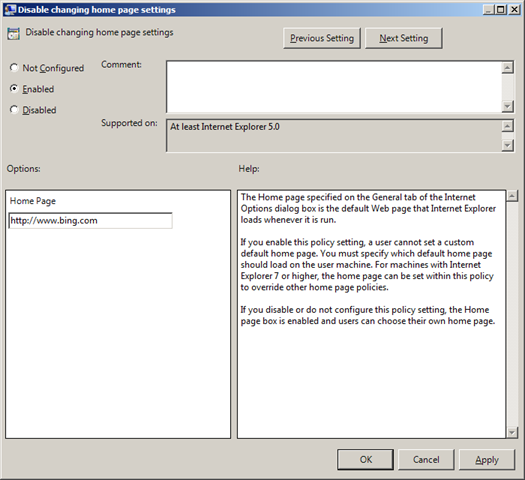
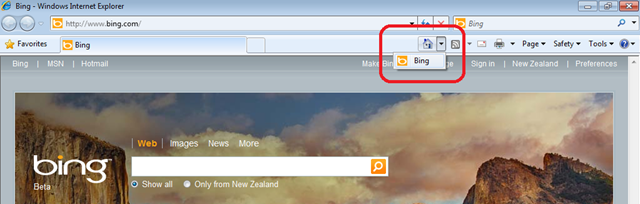
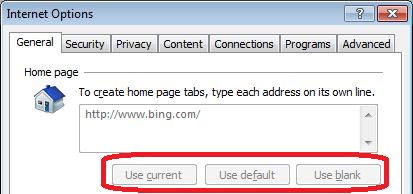
Now the user browsers will be hardcoded to use only http://www.bing.com as the home page and the UI to make this change will be disabled.
Multiple Tabs
This option allows the admin to specify the users secondary home pages while still allowing them to configured the default home page.
Note 1: This policy setting will not work with IE7 that does support secondary home pages.
Note 2: This policy setting will not work if you have the “Disable changing home page settings†also enabled.
Step 1. Edit a GPO that targets the users that you want to apply the home page setting.
Step 2. Navigate to User Configuration > Policies > Administrative Templates >Windows Components > Internet Explorer
Step 3. If you want to configure a single home for your users and/or you are using IE5 or IE6 edit the “Disable changing secondary home page settingâ€
Step 4. Select “Enabled†and Click on “Show…â€
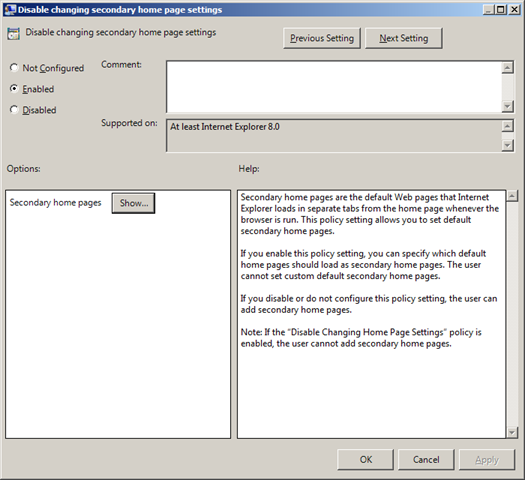
Step 5. Click in the text field next the the * and type the URL that you want to add as a secondary home page. You can repeat this for as many secondary home pages that you want.
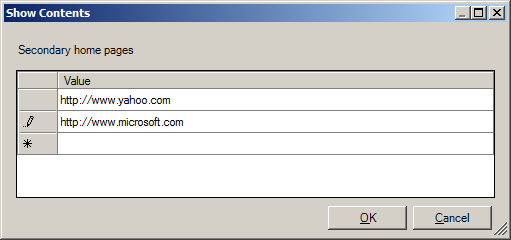
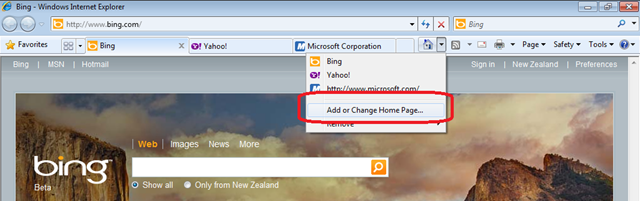
The user will now have http://www.yahoo.com and http://www.microsoft.com load as their secondary home pages and they will be able to change their default primary home page by using theâ€Add or Change Home Page…†option (see image below).
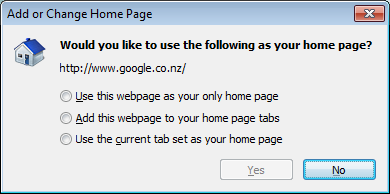
However They will not be able to add or change the secondary home pages which means that the “Add this webpage to your home page tabs†(see image below) option will NOT work.
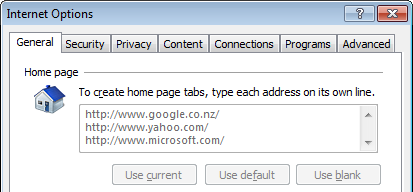
This also means the UI under “Internet Option†for changing the “Home Page†will also be disabled.
I really like the secondary home page option as it allows users to customise their home pages setting why still ensuring they load the corporate home page each time they open their browser.






Blog Post: How to use Group Policy to configure home page settings – Part 1 http://bit.ly/9pqKRa
RT @grouppolicy_biz: Blog Post: How to use Group Policy to configure home page settings – Part 1 http://bit.ly/9pqKRa
How to use Group Policy to configure home page settings – Part 1 http://bit.ly/9pqKRa
Would the operating also system matter?
Is it possible to use a GPO to configure IE 8 on Windows 7 and have the administrator specify a primary home page that can not be changed while still allowing the end users the ability to add additional home pages?
Well… i was going to leave that for part 2… but seeing you asked… You can do it using Group Policy Preferences.
Are part 2 and 3 still to come?
Yep… Here is part 2… https://www.grouppolicy.biz/2010/03/how-to-use-group-policy-to-configure-home-page-settings-part-2/ still working on part 3…
Hello,
How is part 3 going? We are using Internet Explorer Maintenance mode to configure home page on our 2K8 TS servers, however since we installed IE8 this is not working anymore for new profiles.
In IE7 it worked flawlessly. Have you seen this behaviour before?
Regards
Jonas
==quote===
Is it possible to use a GPO to configure IE 8 on Windows 7 and have the administrator specify a primary home page that can not be changed while still allowing the end users the ability to add additional home pages?
===quote===
I have the same question. When using GPP it overwrites the user’s secondary pages so they are lost. What am I missing?
==quote===
Is it possible to use a GPO to configure IE 8 on Windows 7 and have the administrator specify a primary home page that can not be changed while still allowing the end users the ability to add additional home pages?
==quote==
I have the same question. How do you do this with GPP (I think you say above you can). I set a home page with GPP and it works, folks can add pages, but on next GP refresh, their personal settings are removed.
I’ve fix this by manually changing the InternetSettings.xml file in the Preferences folder for the GPO.
I needed to add disabled=”1″ and now things work as I want them to. See code snippet below. FYI
See: http://social.technet.microsoft.com/Forums/en-US/winserverGP/thread/ef5959e4-7c92-4155-a48b-791f3bb1d5b9
–snip–
–snip–
If I’m using IEM(preference) or IEM(mandatory), GPO and GPP for configuring my home page, which one wins ?
I’m asking that because, I need IEM for configuring cookies preference, but, by the way, it seems to overide all the GPP and GPO.
Any ideas ?
thx
@MSAU and how to set multiple home pages using Group Policy … see http://bit.ly/qvHmgX
@MSAU and how to set multiple home pages using Group Policy … see http://bit.ly/qvHmgX
After much testing of the three configuration examples, I found that the simplest way to force the primary start page to be our corporate intranet and allow users full access to subsequent entries was to add a preference item using a registry setting: HKCU\Software\Microsoft\Internet Explorer\Main\Start Page. This setting allows me to overwrite the primary field without undoing changes to secondary pages, esp, when the corporate intranet URL changes, as well as keeping the first start page consistent accross all computers.
Looks like the “Disable changing home page setting” is gone with IE 10 on Windows 8?
IE9 セカンダリタブã®ä»¶ã€GPã‹ã‚‚。http://t.co/zatqxoNa
Here’s an issue we have run into. We have many sales professionals in the field that travel extensively. Once this policy has been put in place it seems like the users cannot access the hotels wifi. I believe this is because in order to do so you have to open up a browser and their (the hotels) home page comes up and should ask for the security key. Since the IE home page is set to automatically go straight to our predetermined intranet site, they cannot access this page.
2 solutions around this are….
open a different browser other than IE
get a link emailed to them directly of the hotels wifi home page.
any thoughts or ideas about this particular snafu?
Thanks a bunch for sharing this with all of us you actually recognise what you are speaking approximately!
Bookmarked. Kindly additionally talk over with my site =).
We could have a link change arrangement between us
Definitely believe that which you said. Your favorite reason seemed to be on the web the easiest thing to be aware of.
I say to you, I definitely get annoyed while people think about worries that
they plainly don’t know about. You managed to
hit the nail upon the top as well as defined out the whole
thing without having side effect , people can take
a signal. Will likely be back to get more. Thanks
My blog post РInt̩grale t.1 pdf
Under the bonnet, Audi claims the new facelifted A4
will be offered with a range of engines that is 11 percent more fuel efficient
than the current generation, despite a significant increase in power
and torque output. Place the back of both wrists at the bottom of the
chin. At $10,000 it was exactly one tenth cheaper than the
same surgery in the United States, which would have cost him $100,000.
Feel free to surf to my webpage; facial plastic surgeon harrisburg pa
how can i configure this in 2012r2 ?? because in 2012 “disable changing home page” policy is missing
Is it possible to use 1 group policy for 2 groups of users with 2 different homepages? Not multiple homepages
Thanks.
Did you ever find a solution to your question? I have 6 default intranet sites to roll out to 6 different groups of users and would rather have 1 policy than 6.